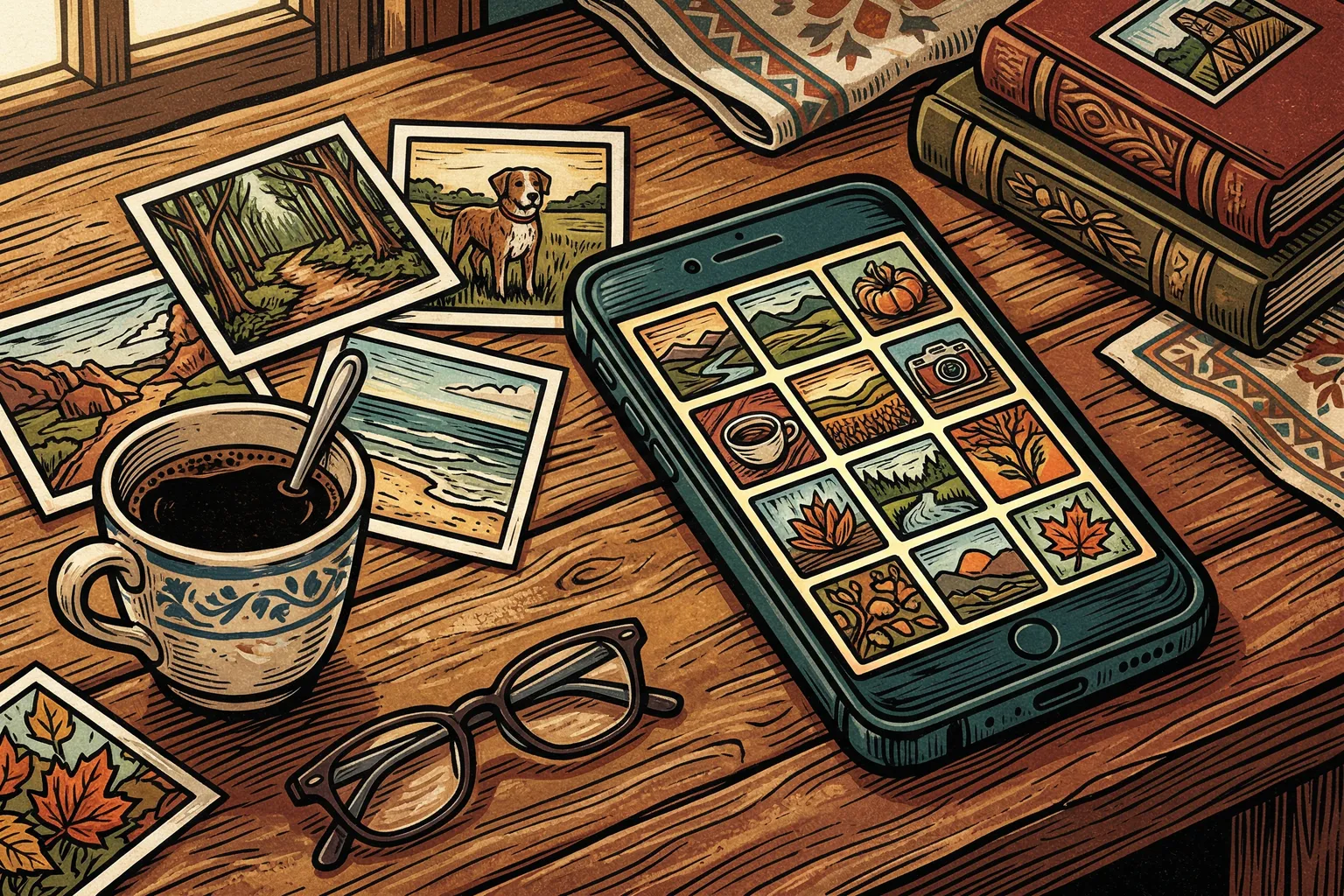
Last Thanksgiving, my daughter Katie texted me a photo of her son blowing out candles on a cake. Not a birthday cake. A practice cake. He’s four, and he’d decided that blowing out candles was the best part of any celebration, so Katie had started putting candles on random baked goods just to let him blow them out. It was one of those photos that makes you laugh every time you see it, and I wanted to show it to a friend over coffee about six months later.
I opened my phone. I knew the photo existed. I knew approximately when it had arrived. I scrolled. I kept scrolling. I passed screenshots of articles I’d meant to read, eleven nearly identical shots of a sunset Lynn had taken from the car, a photo of a receipt, another receipt, a third receipt, and then several hundred images that had nothing to do with anything I was looking for.
I did not find the photo.
I found it later that evening, after Katie told me to just search for “cake” in the search bar. I did not know there was a search bar. I’ve owned an iPhone for nine years.
This is not a confession of incompetence. This is a design problem, and someone designed it this way on purpose.
Here’s what happened. When Apple built the Photos app, they were solving a problem that wasn’t yours. They were solving the problem of a phone that takes thousands of pictures a year and needs to store them efficiently. The solution: a single, chronological stream. Every photo you take, every screenshot you grab, every image someone texts you, goes into one long river sorted by date.
This makes perfect sense if you’re an engineer thinking about file systems. It makes almost no sense if you’re a person trying to find a specific picture of your grandson with a cake.
The engineers weren’t wrong. They were optimizing for a different goal than yours. Their goal: store everything, lose nothing, make it searchable by machines. Your goal: find the one photo I’m thinking of right now. The gap between those two goals is where most of the frustration lives.
The good news is that Apple has quietly built tools into the Photos app that work quite well for finding things. The bad news is that almost nobody knows they’re there, because Apple has never been particularly interested in explaining its own products to the people who use them. The company builds beautiful tools and assumes you’ll figure them out through intuition and luck. Sometimes you do. Often you don’t.
Here’s what I wish someone had told me three years ago.
The search bar is the single most useful feature in your Photos app.
Open Photos. Look at the top of the screen. There’s a search icon (a small magnifying glass). Tap it. Now type a word. Any word. “Beach.” “Dog.” “Christmas.” “Cake.”
Your iPhone has been quietly analyzing every photo you’ve taken and tagging each image with descriptive labels. It knows the difference between a dog and a cat. It knows what a birthday cake looks like. It can recognize specific people’s faces, though you have to set that up first.
When I finally typed “cake” into the search bar, every cake photo I’d ever taken appeared in two seconds. There was the one of my grandson. There were also seven others going back four years, including one from a dinner party I’d completely forgotten. The phone knew. It had always known. I just hadn’t asked.
You can search by date, too. Type “November 2025” and you’ll get every photo from that month. You can search by location if your phone’s location services were on when you took the picture. You can combine terms. “Beach July” will narrow things down. “Katie” will show every photo of your daughter’s face, once you’ve taught the phone to recognize her.
Teaching your phone to recognize faces takes five minutes and saves you years of scrolling.
Open Photos. Tap Albums at the bottom. Scroll down to “People & Pets.” You’ll see clusters of faces your phone has already identified. Tap a cluster, type the person’s name, and that’s it. From now on, searching that name pulls up every photo containing their face.
If the phone has split one person into two clusters (it happens, especially with children whose faces change quickly), you can merge them. Tap one cluster, scroll to the bottom, and look for “Merge People.”
This felt slightly unsettling the first time I did it, the realization that my phone had been cataloging faces without telling me. But I can now type “Ryan” and see every photo of my son in one place, going back to the day I got this phone. That’s useful enough to get past the mild discomfort.
Albums are the thing you’re probably not making, and they solve the problem you keep having.
Most people treat their photo library like a shoebox. Everything goes in. Nothing gets organized. This works until it doesn’t, which is usually the moment you want to find something specific and can’t.
Creating an album takes thirty seconds. Open Photos. Tap Albums at the bottom. Tap the plus sign in the upper left. Tap “New Album.” Give it a name. “Thanksgiving 2025.” “Garden Project.” “Ryan’s Soccer.” Then select the photos you want and tap “Add.”
The photos don’t move. They stay in your main library. The album is more like a bookmark. You can put the same photo in multiple albums. You can add photos months after you took them.
I now have about twenty albums. It took a couple of hours to set up over a weekend, and it changed the way I use my phone more than any other single thing I’ve done with it. When someone asks to see photos from a trip, I open the album. It’s there.
Favorites are simpler than albums, and they solve a different problem.
When you’re looking at a photo, tap the heart icon at the bottom of the screen. That photo is now a Favorite. All your Favorites live in one album the phone creates automatically. This is useful for the photos you show people regularly. The grandson with the cake. The view from that one hike. Instead of scrolling through fourteen thousand images to find the six you actually show people, you tap Favorites and they’re right there.
Two other things worth knowing. If you accidentally delete a photo, it isn’t gone immediately. It moves to “Recently Deleted” in your Albums tab, where it sits for thirty days before disappearing. Check it occasionally. And if you look for “Memories” in the Library view, you’ll find your phone has been quietly assembling collections based on dates, locations, and people. Some are surprisingly good. It once assembled every photo I’d taken on walks along the Flatrock River over two years and set them to music. I didn’t ask for this. The result was genuinely moving.
A quick YouTube search for “how to organize iPhone photos for beginners” will turn up several patient video tutorials that walk through all of this visually. Sometimes watching someone tap through the screens is clearer than reading about it.
There’s a promise these devices make, mostly implied rather than stated. The promise is that everything will be easy. That taking a photo and finding it later are the same act, just separated by time. They aren’t. Taking a photo is effortless. Finding it later is a skill, and nobody teaches you the skill because the device is supposed to make it unnecessary.
It doesn’t. Not yet. The phone is remarkable at storing everything and genuinely poor at helping you retrieve the one thing you want, unless you know where to look and how to ask.
Now you know. The search bar. The People album. The albums you build yourself. Favorites. The tools have been there for years. Someone just decided not to explain them to you, which is a decision worth noticing, even if the practical solution is simply to start using them.
That photo of my grandson with the practice cake is now in three places: my main library, an album called “Grandkids 2025,” and my Favorites. I can find it in two seconds. The phone has not changed. I changed what I know about the phone. That turns out to be enough.
Warren Holt writes about ideas and culture for The Sunday Evening Review. His prior work includes “Best Cell Phones for Seniors: Who Decided You Need a Different Phone?” and “Who Invented Retirement?”